Everything Waywatch does, and how it works.
Every alert mode and smart trigger is free. Pick a feature to jump to it.
It walks home with you
Tell Waywatch where you’re going. It plans the route, knows when you should get there, and keeps an eye out the whole way.
How it works
- Pick your destination. Waywatch plans a walking route and works out when you should arrive.
- Put your phone away. It watches for a wrong turn, for you stopping for too long, and for running late.
- If something looks wrong, it checks with you first. One tap and you carry on; no answer and your contacts are told.
- When you get there, the journey ends by itself.
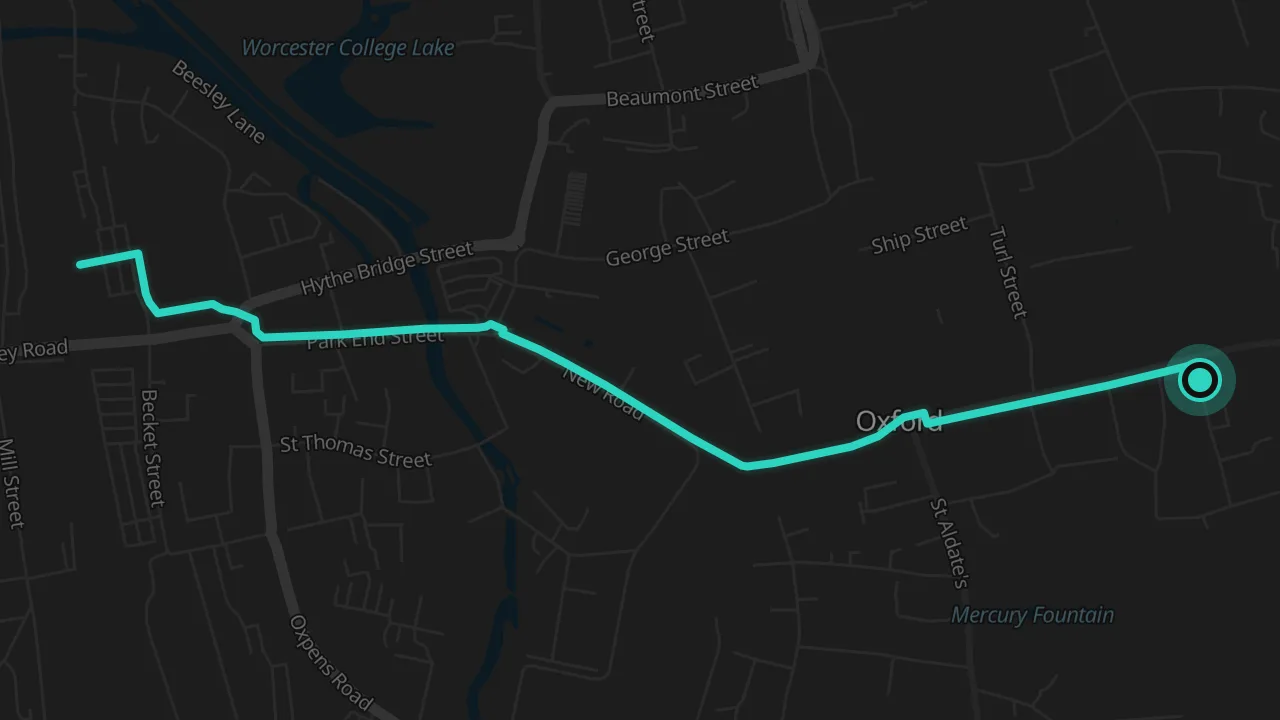 Home · arriving 23:41
Smart about delays
If you’re still making progress, it gives you more time before asking, so a slow walk isn’t an alarm.
A mini map on top
Your route floats over other apps in picture-in-picture, on iPhone and Android.
Saved routes
Home, work and the places you go often are a tap away.
Smart triggers ride along
Your chosen triggers listen and feel for trouble while the journey runs.
Check in, or they’ll check on you
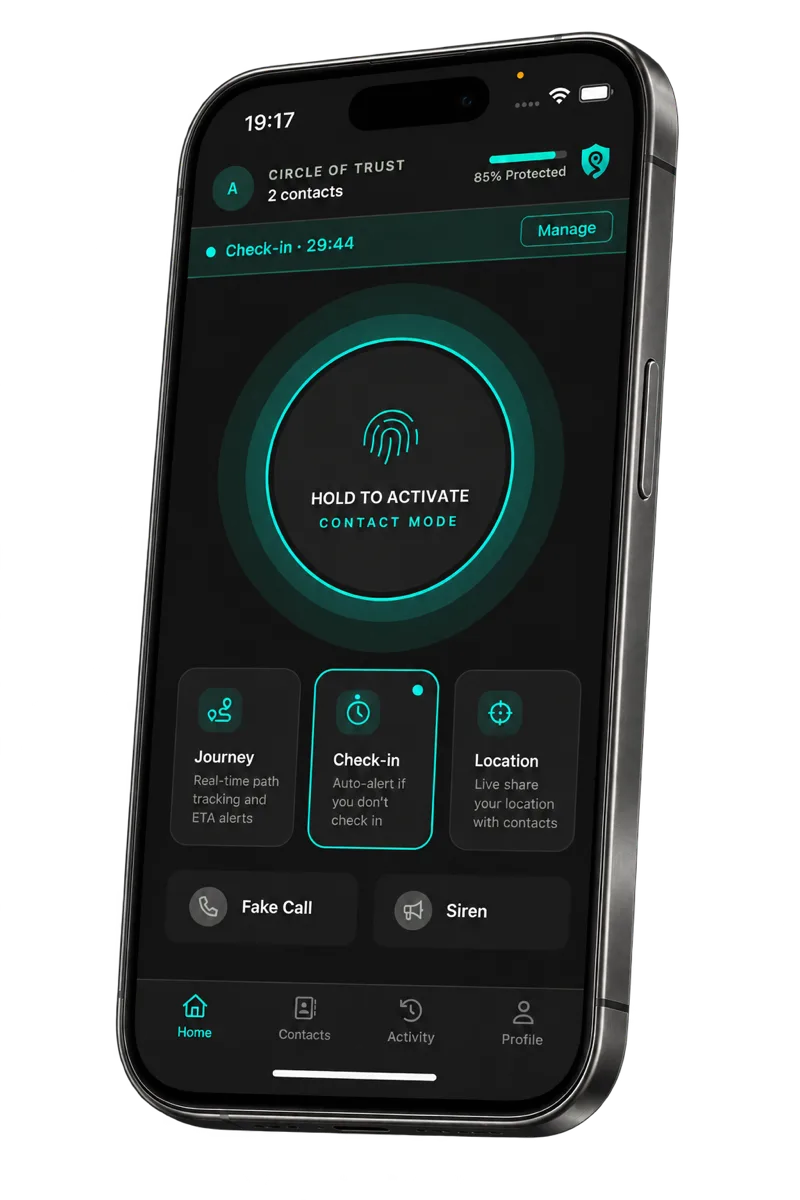
For a date, a late shift or a viewing: set a time. If you don’t check in by then, your contacts are told.
How it works
- Choose how long: 15 minutes to 2 hours, or any time up to 12 hours.
- Get a reminder before it’s due, and a courtesy call if you like.
- Tap “I’m safe” to check in, or add more time.
- Miss it, and your alert profile takes over, even if your phone has died.
Check in on arrival
Add a place, and Waywatch checks you in by itself when you get there.
A courtesy call
A fake call rings as time runs out: a natural reason to step away and check in.
Kept on our side too
The timer runs on our servers as well, so it still goes off if your phone runs out of battery.
For the moments you’re scared
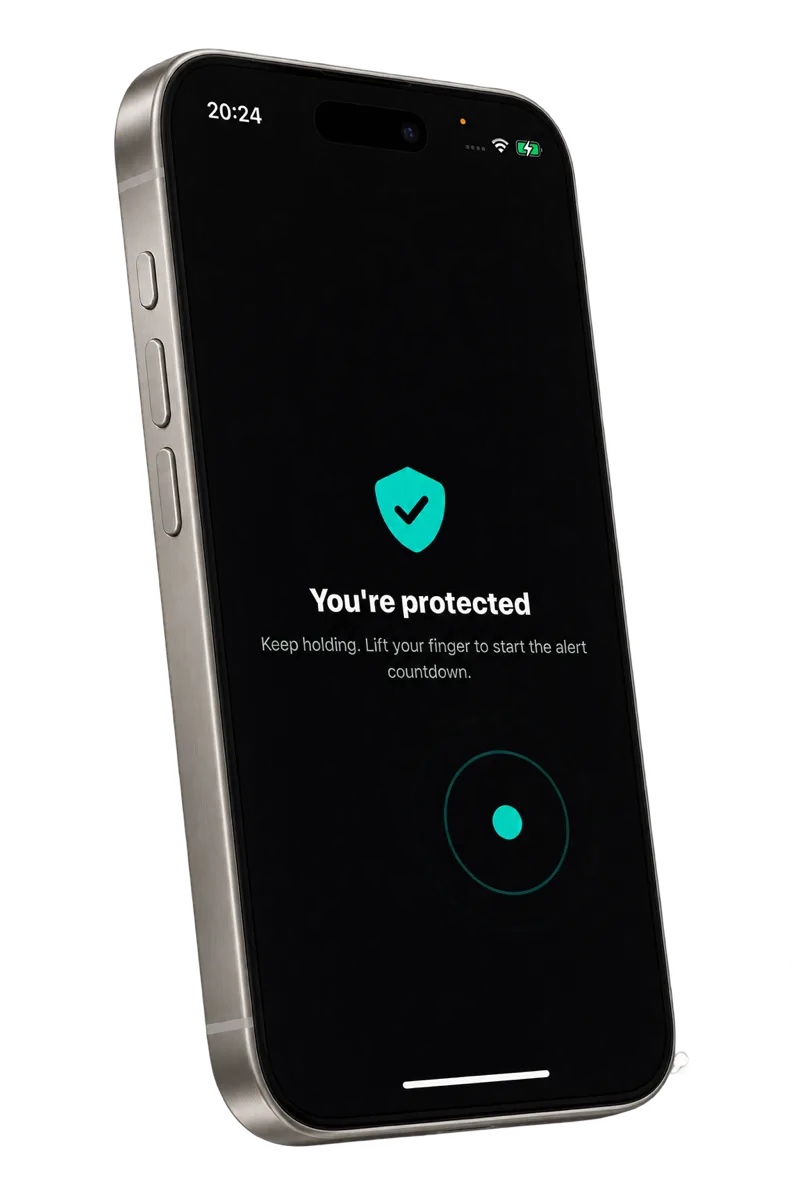
Hold your thumb on the screen. While you hold, you’re protected. If you let go, or the phone is knocked or grabbed, the countdown starts.
How it works
- Open Contact Mode and hold. It only arms after a deliberate hold, so a stray tap won’t start anything.
- Let go and a short countdown starts. Put your thumb back to stop it.
- If you can’t, your contacts are alerted straight away.
Disguises, if you want them
Off by default. Turn one on and the screen looks like an email inbox, or goes fully black with a silent countdown.
Only you can call it off
With Unlock to cancel on, stopping an alert needs your Face ID, fingerprint or passcode.
One swipe when there’s no time
Swipe SOS on the home screen and your alert goes straight out, with no menus and no waiting.
How it works
- Swipe SOS on the home screen.
- Its own alert profile runs: by default the siren sounds, everyone is told at once, and a Call 999 button appears.
- Your location and recordings go with the alert as it carries on.
You can change what SOS does, like adding a countdown, in its alert profile.
Hands-free, for when you can’t reach your phone
During a journey, a check-in or live location, Waywatch can listen and feel for trouble. Any trigger you choose starts the countdown for you.
Your safeword
Say a word or phrase only you would choose. Recognised on your phone, never sent anywhere.
Screams and loud noise
A scream or a sudden loud confrontation, past a level you set for where you are.
Falls
A trip, a collapse or a fall from height, followed by too little movement.
Crashes
A sharp impact while you’re travelling at driving speed, then stopping.
A snatched phone
A sudden yank from your hand, then the phone moving fast or your headphones dropping out.
An unplanned ride
You set off on foot, then you’re suddenly moving at car speed.
Triggers work with the phone locked, in a pocket or a bag, and always give you a countdown to cancel first. You can also choose to keep a trigger listening whenever Waywatch is running.
You decide who’s told, and when
An alert profile is the plan for what happens when an alert starts. Make one for walking home, one for dates, one for emergencies.
How it works
- Choose how long the countdown is, so you have time to cancel a false alarm.
- Add the steps: sound the siren, tell your first contacts, tell more people later, prompt you to call 999.
- Set how long to wait between steps, or make everything happen at once.
- Pick which profile each mode uses: gentle for journeys, immediate for SOS.
- Siren on your phoneStraight away
- Sister · text and notificationStraight away
- Mum and Dad · text, emailAfter 5 min
- Prompt you to call 999After 10 min
It still goes out if your phone dies
The countdown is kept on our servers too, so a flat battery or lost signal can’t stop your alert.
Cancel from the lock screen
On iPhone the countdown shows as a Live Activity, so you can cancel without unlocking.
Told when you’re safe
End an alert and everyone who was told hears that you’re safe, or that it was a false alarm.
Recording starts with the countdown
You won’t have to remember to press record. When an alert’s countdown starts, your phone starts capturing, and it all goes with your alert if it’s sent. Cancel, and it’s deleted.
Location
Your trail from the moment the countdown starts, updating as you move.
Audio
Short clips, uploaded as the alert goes on. On Premium, a transcript and how many voices were heard.
Video
From the back camera while Waywatch is on screen, and the front camera too on Premium.
Movement
How the phone moved: running, a fall, being thrown.
Context
Battery, Wi-Fi or mobile data and network, nearby Wi-Fi networks (Android) and altitude.
Turn each one on or off in the app’s settings. Everything your contacts can open is on one page: see For emergency contacts.
A way out that looks like a real call
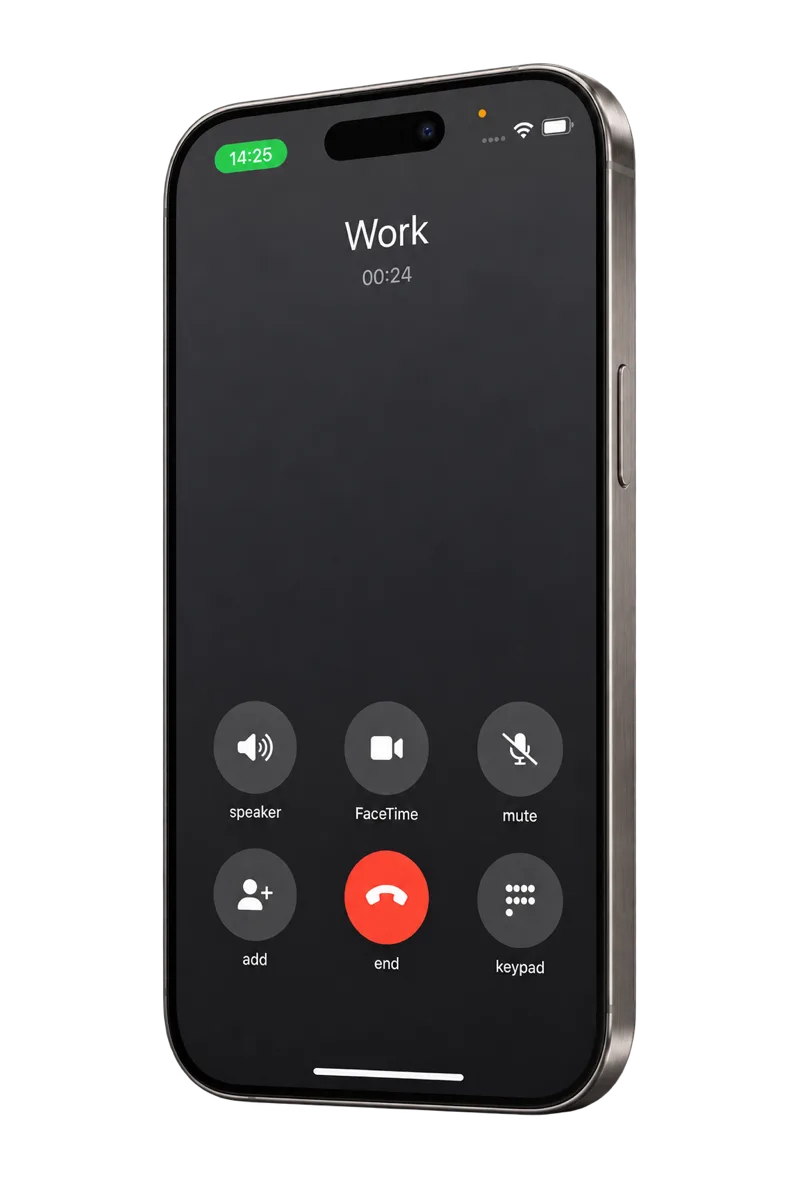
Set a call to ring when you need an excuse to leave. On iPhone it uses your phone’s own call screen, even when it’s locked.
How it works
- Choose who’s calling: “Work”, “Mum”, or any name.
- Choose when it rings: now, or after a delay.
- Choose what they say: your own recording, a script you type, or on Premium an AI caller who answers back.
How it sounds
A street, a car, the rain or an office in the background, on a mobile, landline or bad signal.
A safety net inside
Type your code on the call’s keypad to start an alert while the call carries on.
AI caller on Premium
A caller who listens and replies, 30 minutes a month.
Share where you are, on your terms
Let someone keep an eye on you for a while, without an alert. They open a link; no app needed.
How it works
- Choose who: your contacts, or any phone number or email.
- Choose how much: your exact path, just your general area, or only where you are now.
- Choose how long, up to 12 hours. The link stops working when you stop sharing.
Links by text message are on paid plans; by notification and email on every plan.
What responders need, without your passcode
Add your blood type, allergies, conditions, medication and who to call. Whoever reaches you first can see it.
- Blood type
- O+
- Allergies
- Penicillin
- Conditions
- Asthma
- Call
- Mum · 07700 900123
On your lock screen
Lock screen widgets on iPhone, and a lock screen notification on Android.
A QR code for paramedics
They scan it for the rest of your details, online or offline.
With your alerts
Your contacts see it on the alert page, if you allow it.
Protection you can see at a glance
See what’s protecting you, and start it, without opening the app.
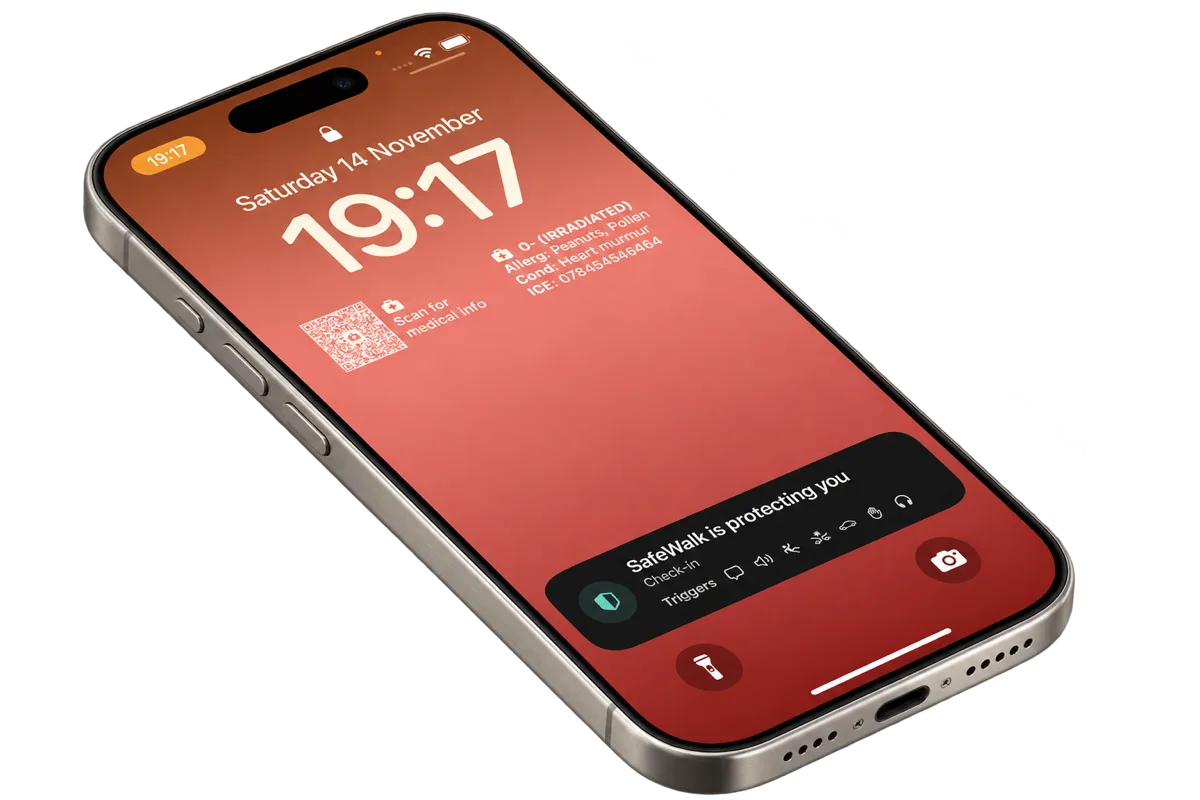
“Waywatch is protecting you”
A Live Activity shows what’s running and which triggers are listening, and an alert’s countdown.
Home screen widgets
Small, medium and large, showing your protection and quick ways to start it.
A status banner in the app
Whatever’s running, always at the top, a swipe away.
Live Activities and widgets are on iPhone.

Free to start.
Ready in minutes.
Set it up tonight, before you need it. Three steps and you’re covered on the walk home.
Free on iPhone and Android · No card needed- Add someone you trustPick them from your phone's contacts. They get an invite by text or email.
- They say yesNo app needed on their side. They can open alerts from a link.
- You're protectedStart a journey, set a check-in, or switch on smart triggers when you head out.